How to Resize Photos for Government Job Applications: Step-by-Step Guide
Learn how to resize and compress your photograph to the exact dimensions and file size required for SSC, UPSC, Banking, and Railway exam applications — without losing quality.
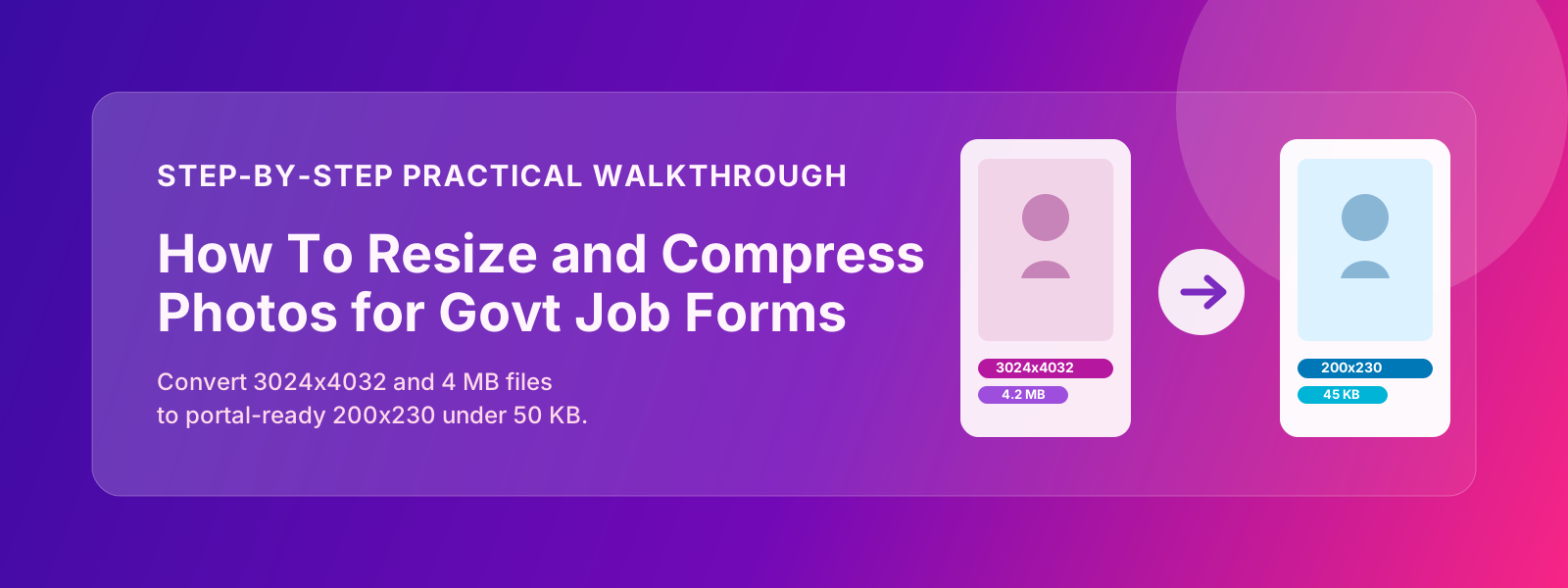
You’ve taken a good photo. You’ve got the white background, the neutral expression, the formal clothes. Now the exam portal is asking for a 200 × 230 pixel JPEG under 50 KB and your phone saved a 4032 × 3024 HEIC file that’s 4.2 MB. This guide walks you through every method — from zero-install online tools to desktop software — to get from that phone photo to the exact specification in under two minutes.
Why “Just Resize” Isn’t Always Enough
Resizing changes dimensions. Compressing reduces file size. You almost always need both, in that order:
- Resize first — scale the image down to the target pixel/cm dimensions
- Compress second — reduce the JPEG quality level until the file size is under the limit
Skipping step 1 and only compressing can produce a blurry large image that’s small in kilobytes but wrong in dimensions. Skipping step 2 and only resizing can give you correct dimensions but a 200 KB file when the limit is 50 KB.
Method 1 — ExamFormTools (Fastest, No Install)
Our Passport Photo Tool handles both resize and compress in one step:
- Open ExamFormTools Passport Photo Tool
- Click Upload Photo and select your image (JPG, PNG, HEIC, WEBP all accepted)
- Choose a preset (e.g., “IBPS / SSC / RRB — 200×230 px”) or enter custom dimensions
- Set the target file size (e.g., 50 KB max)
- Click Download — the tool outputs a correctly-sized JPEG
The tool uses client-side processing — your photo never leaves your device.
When to use the Image Compressor instead
If you already have the correct dimensions but the file is slightly over the size limit, use the Image Compressor — it uses smart JPEG optimisation to shave off file size with minimal quality loss.
Method 2 — Microsoft Paint (Windows, Free)
Paint ships with every version of Windows and can resize images to exact pixel dimensions:
- Open Paint → File → Open your photo
- Go to Home → Resize/Skew
- Select Pixels and uncheck “Maintain aspect ratio” if the exam requires a specific WxH ratio
- Enter the target width and height (e.g., 200 × 230 for IBPS)
- Click OK
- File → Save As → JPEG Picture
- Check the saved file size. If over limit, reduce quality by lowering the slider that appears when you choose JPEG format.
Limitation: Paint’s compression control is limited. If you need to hit 50 KB precisely, use an online compressor afterwards.
Method 3 — Photos App / Preview (Windows 11 / macOS)
Windows 11 Photos App
- Open your image in Photos
- Click the three-dot menu → Resize image
- Enter target dimensions in pixels
- Save as JPEG
macOS Preview
- Open the image in Preview
- Tools → Adjust Size — enter width and height in pixels
- File → Export — choose JPEG and drag the quality slider down until the size shown is under the limit
Method 4 — Microsoft Word / LibreOffice (Quick Crop for Print)
This method is useful when you need to physically print and cut the photo, not for digital uploads.
- Insert your photo into a Word document
- Right-click → Format Picture → Size
- Set Height to 4.5 cm and Width to 3.5 cm
- Print on photo paper; cut to size
Method 5 — GIMP (Advanced, Free Desktop App)
GIMP offers the most control:
- Image → Scale Image — set width 200 px, height 230 px (or your target), Interpolation: Sinc (Lanczos)
- Click Scale
- File → Export As — name it
.jpg - In the JPEG export dialog, drag Quality down to around 75–80
- The file size preview updates live — stop when under your limit
Understanding the Numbers
Pixels vs Centimetres vs Inches
Digital portraits are measured in pixels (px). Physical prints and some older exam systems use centimetres (cm). The connection is DPI (dots per inch):
$$\text{pixels} = \text{cm} \times \frac{\text{DPI}}{2.54}$$
For 3.5 cm at 200 DPI:
$$3.5 \times \frac{200}{2.54} \approx 276 \text{ px}$$
For 3.5 cm at 300 DPI:
$$3.5 \times \frac{300}{2.54} \approx 413 \text{ px}$$
For most exam upload portals, 200 DPI gives a good result within file size limits. Only use 300 DPI if the exam explicitly requires it (NEET, JEE).
JPEG Quality vs File Size
| JPEG Quality | Typical File Size | Visual Quality |
|---|---|---|
| 95 % | 200–400 KB | Virtually lossless |
| 85 % | 80–150 KB | Very good |
| 75 % | 40–80 KB | Good — ideal for 50 KB limit |
| 60 % | 20–40 KB | Acceptable — visible compression |
| 50 % | 15–25 KB | Noticeable blockiness |
For the strict 50 KB limits used by SSC and Banking exams, target 75–80 % quality after resizing to 200×230 px. This consistently lands under 50 KB.
Common Pitfalls and How to Avoid Them
Pitfall 1 — Converting PNG to JPEG Without Resizing
Some candidates simply rename .png to .jpeg. This doesn’t convert the file — the portal still reads the file header and rejects it. Use an actual export/save-as step in any image tool.
Pitfall 2 — Upscaling a Small Image
If your photo is 100 × 130 px and you scale it up to 200 × 230 px, you get a blurry, blocky image. You cannot recover quality that wasn’t there to begin with. Start with a high-resolution photo (at least 500 × 700 px) and scale down.
Pitfall 3 — Saving as Progressive JPEG
Some exam portals reject progressive (streaming) JPEGs and require baseline JPEGs. In GIMP, uncheck “Save as Progressive” in the JPEG export dialog. Most simpler tools save baseline by default.
Pitfall 4 — HEIC Format From iPhone
iPhones save photos in HEIC by default. Android devices save in JPG. To convert HEIC to JPG:
- On iPhone: Go to Settings → Camera → Formats → Most Compatible (sets capture to JPG going forward)
- Online: Our Rename & Convert Tool converts HEIC to JPEG in one click
Pitfall 5 — Wrong Aspect Ratio
3.5 × 4.5 cm has a ratio of approximately 7:9. If you force a 200 × 230 px output (ratio ≈ 0.87:1), your photo will appear slightly squished. This often happens when “maintain aspect ratio” is unchecked without cropping first. Always crop to the correct ratio before resizing.
Quick Reference: Target Specifications by Exam
| Exam | Width | Height | Unit | Max KB |
|---|---|---|---|---|
| UPSC CSE / NDA / CDS | 3.5 | 4.5 | cm | 300 |
| SSC CGL / CHSL / MTS | 3.5 | 4.5 | cm | 50 |
| IBPS PO / Clerk | 200 | 230 | px | 50 |
| SBI PO / Clerk | 240 | 320 | px | 50 |
| RBI Grade B | 200 | 230 | px | 50 |
| RRB NTPC / Group D | 3.5 | 4.5 | cm | 500 |
| NEET UG | 3.5 | 4.5 | cm | 200 |
| JEE Main | 3.5 | 4.5 | cm | 200 |
| UPPSC PCS | 3.5 | 4.5 | cm | 50 |
| BPSC CCE | 3.5 | 4.5 | cm | 50 |
Frequently Asked Questions
The portal keeps saying my photo is too large even after compression. What should I do?
Lower the JPEG quality further (try 65 %) or verify that you resized the dimensions first. A 2000 × 2500 px image at 80 % quality can still be 800 KB. The dimensions must be reduced before compressing.
Can I resize a photo on my phone?
Yes. On Android: open in Gallery → Edit → Crop → set aspect ratio. For specific pixel dimensions, use apps like “Photo & Picture Resizer” from Play Store. On iPhone, the built-in Photos editor doesn’t allow pixel-precise resizing — use the ExamFormTools Passport Photo Tool on mobile instead.
What’s the safest file size to target?
Target around 70–80 % of the maximum allowed. If the limit is 50 KB, aim for 35–40 KB. This leaves a buffer for any processing the portal does on your upload.
Does resizing affect photo quality visibly?
Scaling down from a higher resolution (which is what you’re doing) does not degrade visible quality. JPEG compression at high ratios does. As long as you stay above 70 % JPEG quality, a passport-size photo looks fine.
My photo has a blue/grey background. Can I change it to white?
Yes. Use our Background Remover — it replaces the background with solid white automatically.